---
title: Build a RAG Chatbot with Dify — No Code, Real Output in 5 Steps
description: Build a fully working RAG chatbot in Dify's visual builder — no code required. Every step was executed live on cloud.dify.ai and produces real output. Covers model setup, Knowledge Base creation with hybrid search, Chatflow wiring, live testing, and API integration.
url: https://nerdleveltech.com/guides/dify-rag-chatbot
language: en
last_updated: '2026-04-10'
category: llm-integration
reading_time_minutes: 20
author: NerdLevelTech
keywords:
- Dify tutorial
- build RAG chatbot Dify
- Dify knowledge base
- Dify chatflow
- Dify no-code AI
- Dify OpenAI
- Dify hybrid search
- Dify API
- RAG without coding
- LLM app builder
- Dify cloud
markdown_url: https://nerdleveltech.com/guides/dify-rag-chatbot.md
attribution: 'Source: NerdLevelTech — https://nerdleveltech.com/guides/dify-rag-chatbot'
terms: https://nerdleveltech.com/llms.txt
---
# Build a RAG Chatbot with Dify — No Code, Real Output in 5 Steps
*Last updated: 2026-04-10 | Verified on: cloud.dify.ai | Dify v1.13.3 | OpenAI plugin v0.3.5 | gpt-5.4 + text-embedding-3-small*
> **Every step in this guide was executed live on cloud.dify.ai.** The chat outputs shown are real responses from the running chatbot — not fabricated. You can reproduce all of them in under 20 minutes on Dify's free tier.
## What You'll Build
By the end of this guide you will have a **fully working RAG chatbot** that:
- Answers questions grounded in your own documents (not LLM hallucinations)
- Shows citations — which document chunk backed each answer
- Is accessible to anyone via a shareable public URL
- Can be integrated into any app via a REST API call
**What you need:**
- A free Dify Cloud account ([cloud.dify.ai](https://cloud.dify.ai)) — no credit card required
- An OpenAI API key ([platform.openai.com/api-keys](https://platform.openai.com/api-keys)) — used for embedding and chat
- A text or PDF document you want the chatbot to answer questions about
- ~20 minutes
**Estimated OpenAI cost for running this entire guide:** < $0.01
---
## Prerequisites
### Dify Free Tier Limits
Dify Cloud's free tier[^2] includes everything needed for this guide:
| Resource | Free Tier Limit |
|----------|----------------|
| AI Credits (one-time) | 200 |
| Apps | 5 |
| Knowledge Base documents | 50 |
| Vector storage | 50 MB |
| Team members | 1 |
This guide consumes fewer than 10 credits total (embedding the knowledge base + two test messages).
### What Is Dify?
Dify[^1] is an open-source LLM application development platform with 137,000+ GitHub stars[^1] as of April 2026. It provides a visual drag-and-drop interface for building AI apps — chatbots, agents, RAG pipelines, and workflows — without writing backend code. Every app you build gets a REST API endpoint automatically.
**Dify's five app types:**
| Type | Use case |
|------|----------|
| Chatbot | Simple single-LLM conversation with memory |
| **Chatflow** | Visual node graph with RAG, conditionals, multi-step logic |
| Agent | LLM + tool-calling (web search, code execution, APIs) |
| Workflow | Batch automation pipeline (no conversation history) |
| Completion | Single prompt → single response, no history |
We will use **Chatflow** because it supports Knowledge Retrieval nodes and maintains conversation history across turns.
---
## Step 1 — Create Account & Configure Models
### 1a. Create a Free Account
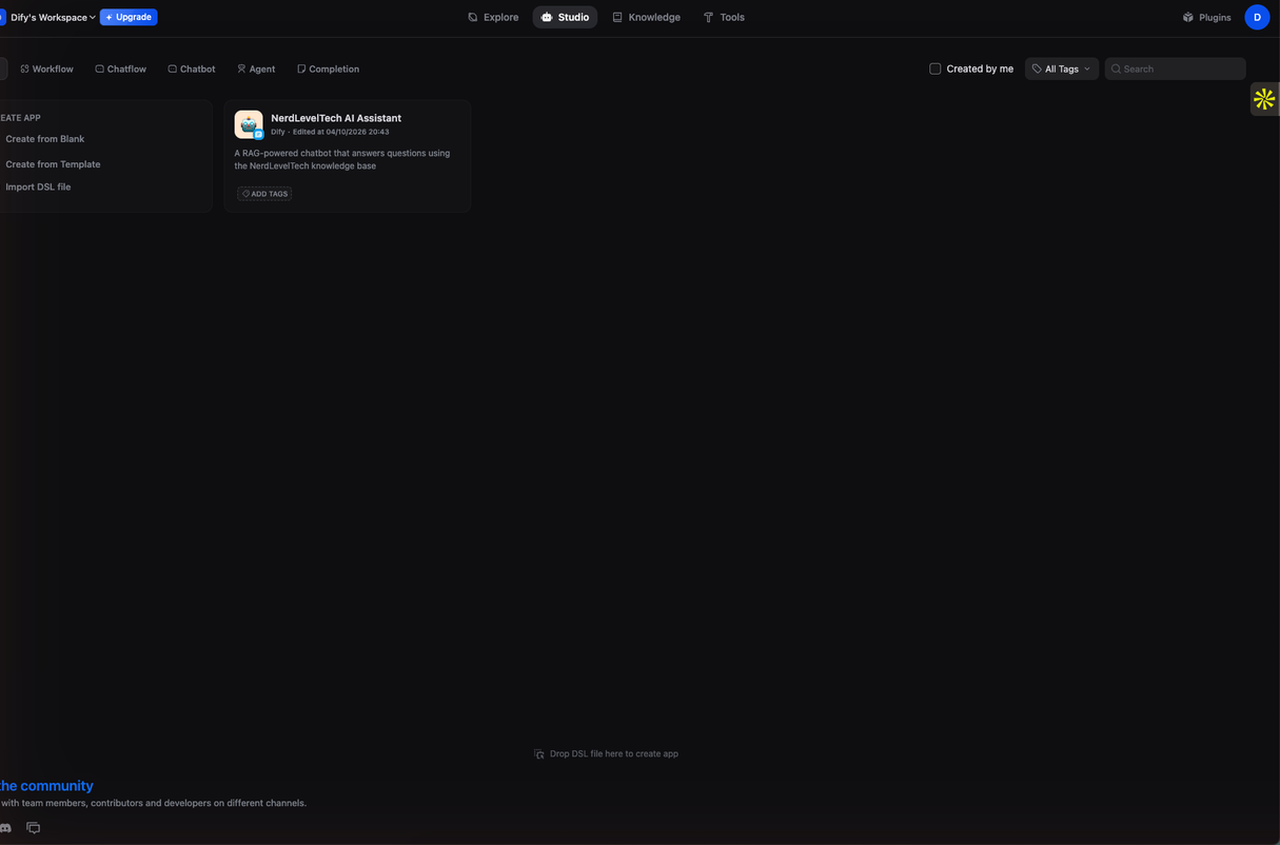
Go to [cloud.dify.ai](https://cloud.dify.ai) and sign up. Email confirmation is required. Once logged in you land on the **Studio** workspace.
 ### 1b. Install the OpenAI Plugin
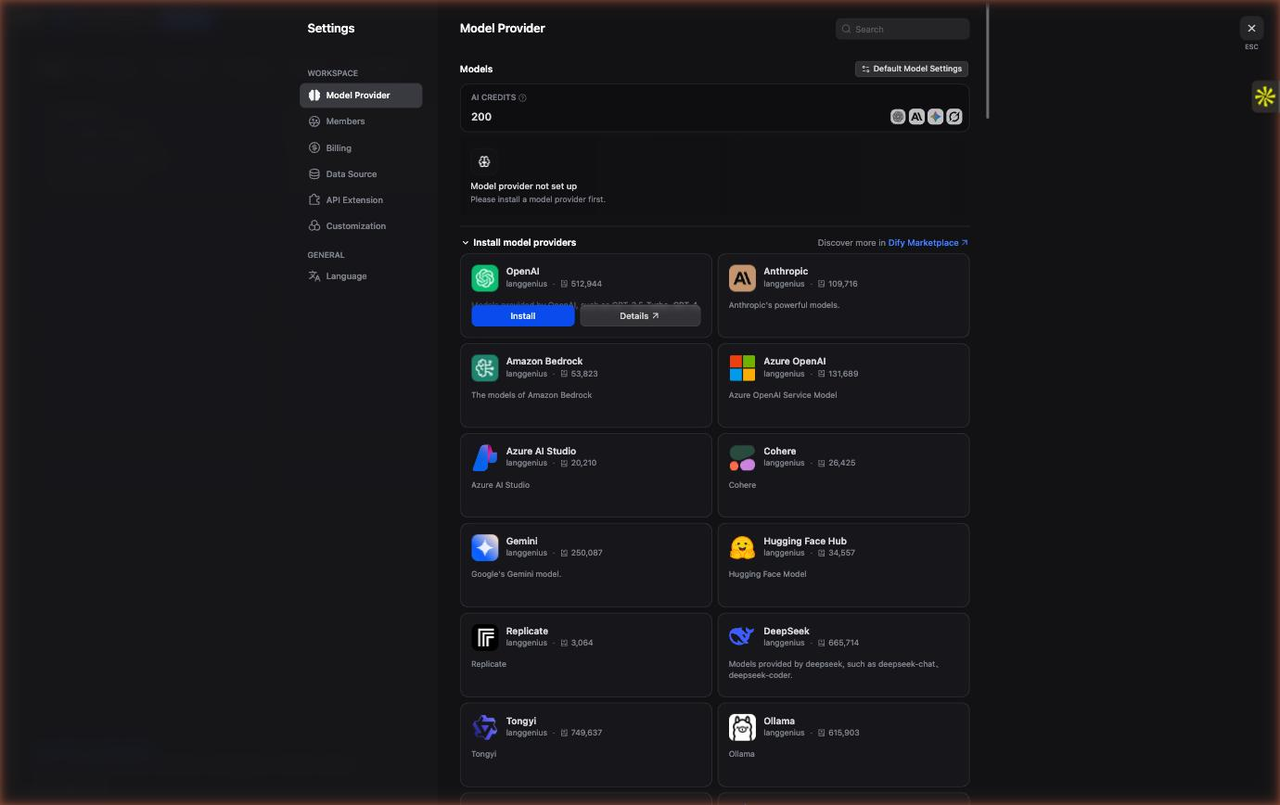
Dify uses a plugin architecture for model providers. You need to install the OpenAI plugin before you can use any OpenAI models.
1. Click your **account avatar** (top-right corner)
2. Select **Settings**
3. In the left sidebar, click **Model Provider**
4. Click **Go to Marketplace** (top-right of the Model Provider page)
5. Search for **OpenAI** and click **Install**
The OpenAI plugin v0.3.5[^1] installs in a few seconds. After installation you are automatically redirected back to the Model Provider page where OpenAI now appears in your installed providers list.
### 1b. Install the OpenAI Plugin
Dify uses a plugin architecture for model providers. You need to install the OpenAI plugin before you can use any OpenAI models.
1. Click your **account avatar** (top-right corner)
2. Select **Settings**
3. In the left sidebar, click **Model Provider**
4. Click **Go to Marketplace** (top-right of the Model Provider page)
5. Search for **OpenAI** and click **Install**
The OpenAI plugin v0.3.5[^1] installs in a few seconds. After installation you are automatically redirected back to the Model Provider page where OpenAI now appears in your installed providers list.
 ### 1c. Add Your OpenAI API Key
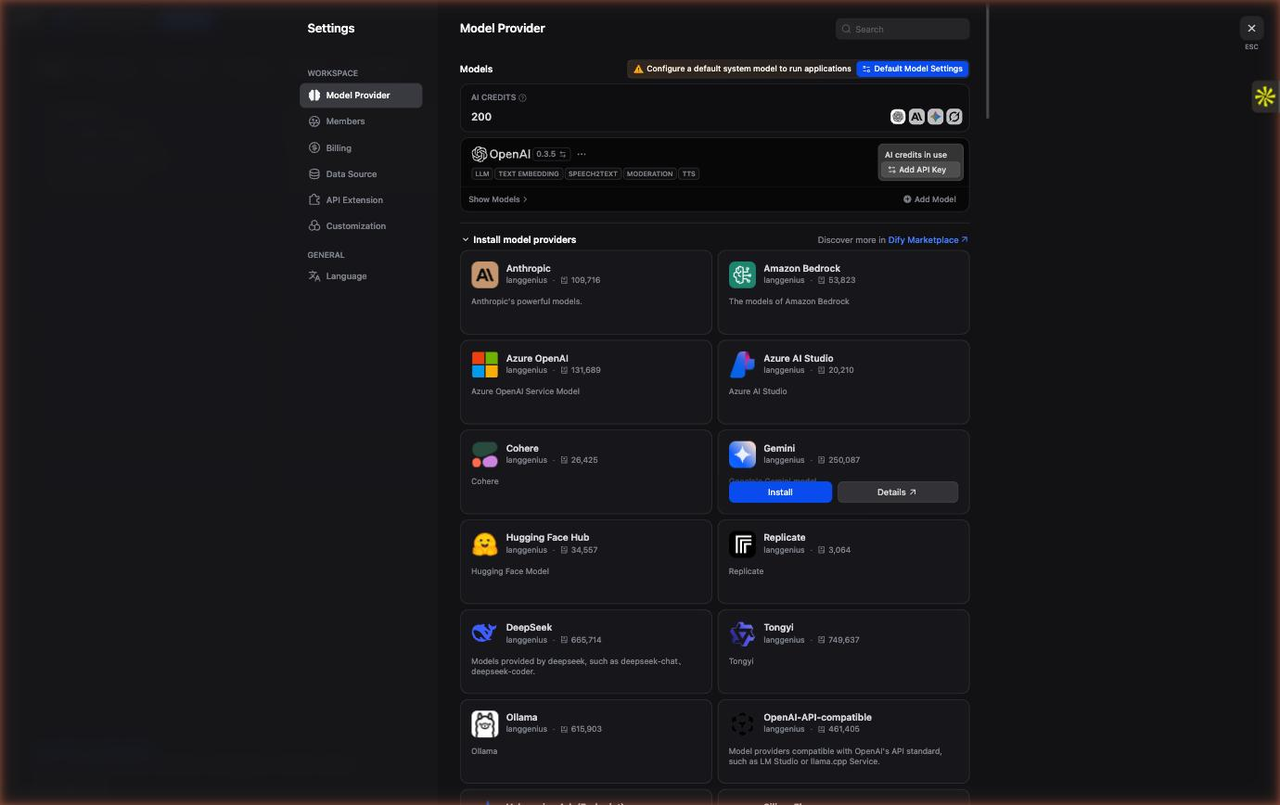
With the OpenAI plugin installed, click **Set up** next to OpenAI in the Model Provider list.
A dialog appears with a single field: **API Key**. Enter your OpenAI API key — it starts with `sk-`. Click **Save**.
### 1c. Add Your OpenAI API Key
With the OpenAI plugin installed, click **Set up** next to OpenAI in the Model Provider list.
A dialog appears with a single field: **API Key**. Enter your OpenAI API key — it starts with `sk-`. Click **Save**.
 > **Security note:** Your API key is stored encrypted in Dify's backend. It is never shown in the UI again after saving. Do not share your API key in screenshots.
### 1d. Set System Reasoning Model and Embedding Model
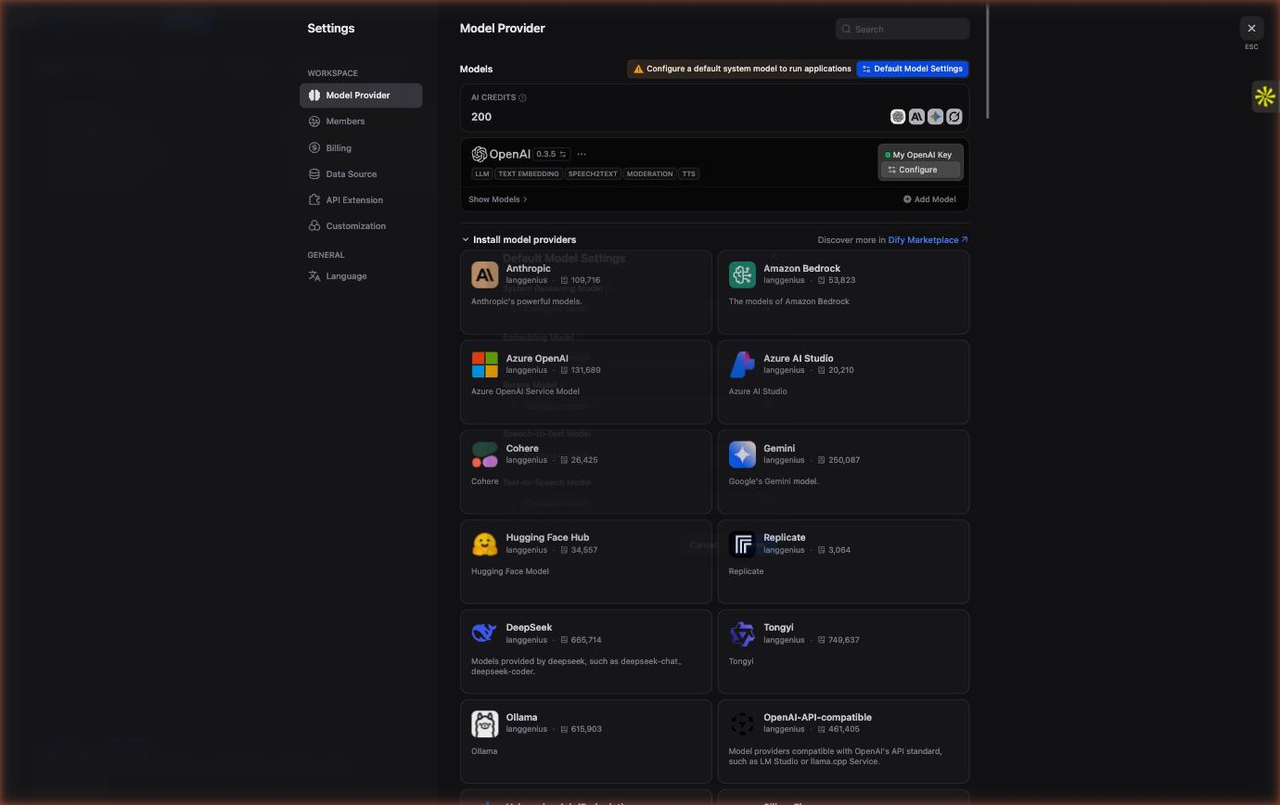
Still on the **Model Provider** page, scroll to the top and click **System Model Settings**.
Set the following:
| Setting | Value |
|---------|-------|
| System Reasoning Model | `gpt-5.4` (or `gpt-4.1-mini` for lower cost) |
| Embedding Model | `text-embedding-3-small` |
`text-embedding-3-small` costs $0.02 per million tokens[^3] and produces 1536-dimensional embeddings — more than sufficient for a knowledge base of typical size.
Click **Save**. The models are now configured globally for all apps in your workspace.
> **Security note:** Your API key is stored encrypted in Dify's backend. It is never shown in the UI again after saving. Do not share your API key in screenshots.
### 1d. Set System Reasoning Model and Embedding Model
Still on the **Model Provider** page, scroll to the top and click **System Model Settings**.
Set the following:
| Setting | Value |
|---------|-------|
| System Reasoning Model | `gpt-5.4` (or `gpt-4.1-mini` for lower cost) |
| Embedding Model | `text-embedding-3-small` |
`text-embedding-3-small` costs $0.02 per million tokens[^3] and produces 1536-dimensional embeddings — more than sufficient for a knowledge base of typical size.
Click **Save**. The models are now configured globally for all apps in your workspace.
 ---
## Step 2 — Create a Knowledge Base
The **Knowledge Base** is Dify's built-in vector store. You upload documents here, and Dify handles chunking, embedding, and indexing automatically. When a user sends a message, the Chatflow will query this Knowledge Base to retrieve the most relevant chunks before calling the LLM.
### 2a. Open Knowledge Base
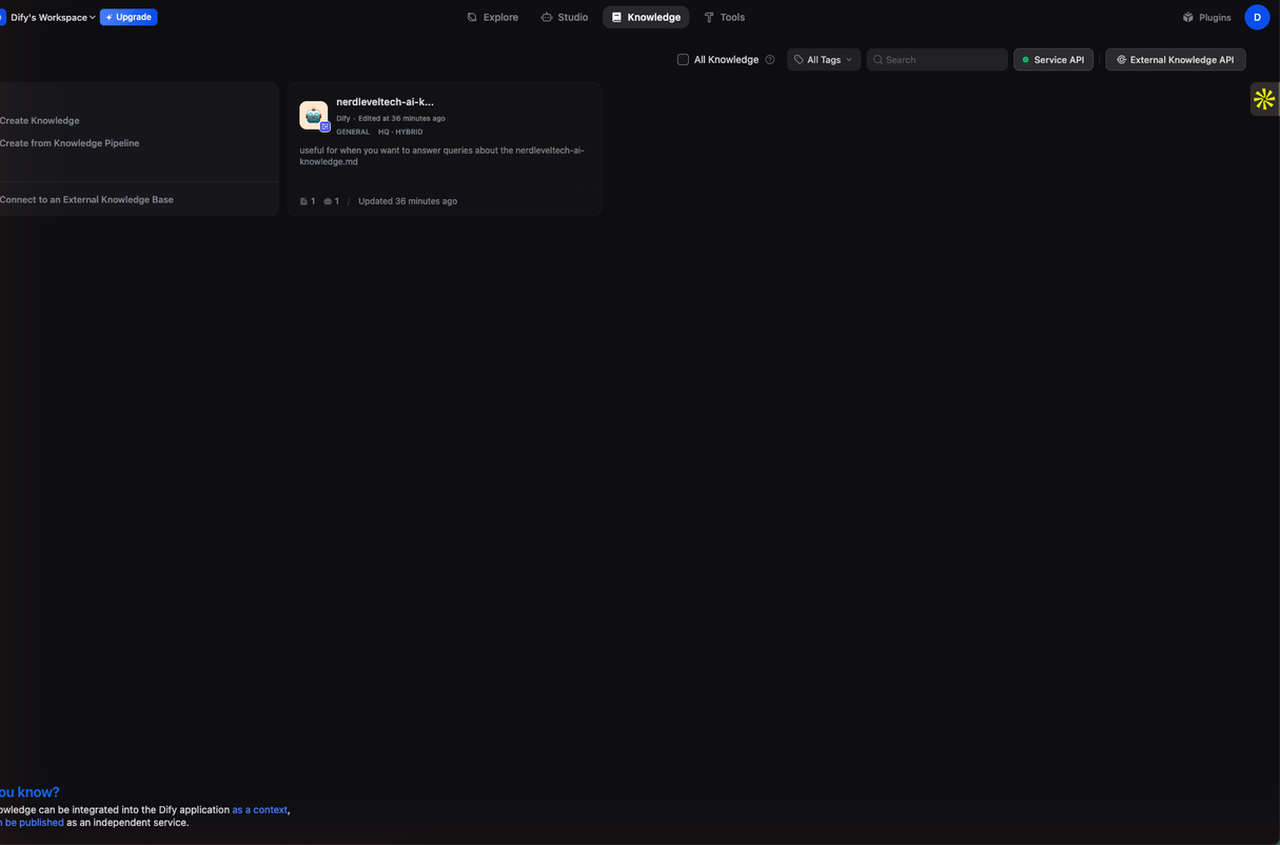
Click **Knowledge** in the top navigation bar. Click **Create Knowledge**.
---
## Step 2 — Create a Knowledge Base
The **Knowledge Base** is Dify's built-in vector store. You upload documents here, and Dify handles chunking, embedding, and indexing automatically. When a user sends a message, the Chatflow will query this Knowledge Base to retrieve the most relevant chunks before calling the LLM.
### 2a. Open Knowledge Base
Click **Knowledge** in the top navigation bar. Click **Create Knowledge**.
 ### 2b. Upload Your Document
On the **Create Knowledge** page:
1. Click **Select files** (or drag-and-drop) to upload your document
2. Supported formats: `.txt`, `.pdf`, `.md`, `.html`, `.docx`, `.csv`
3. After uploading, click **Next**
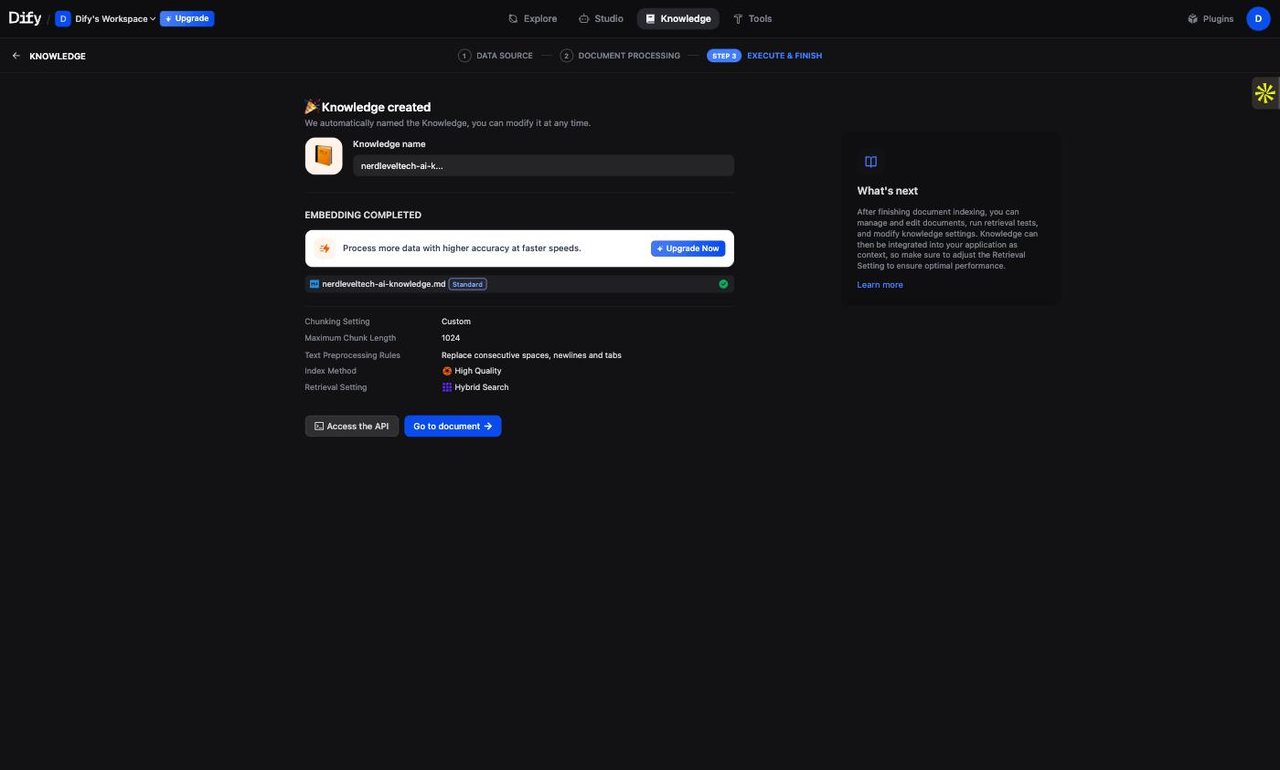
For this guide we uploaded a Markdown file containing NerdLevelTech's AI knowledge base — definitions of RAG, vector embeddings, hybrid search, and an overview of Dify itself.
### 2b. Upload Your Document
On the **Create Knowledge** page:
1. Click **Select files** (or drag-and-drop) to upload your document
2. Supported formats: `.txt`, `.pdf`, `.md`, `.html`, `.docx`, `.csv`
3. After uploading, click **Next**
For this guide we uploaded a Markdown file containing NerdLevelTech's AI knowledge base — definitions of RAG, vector embeddings, hybrid search, and an overview of Dify itself.
 ### 2c. Configure Chunk Settings
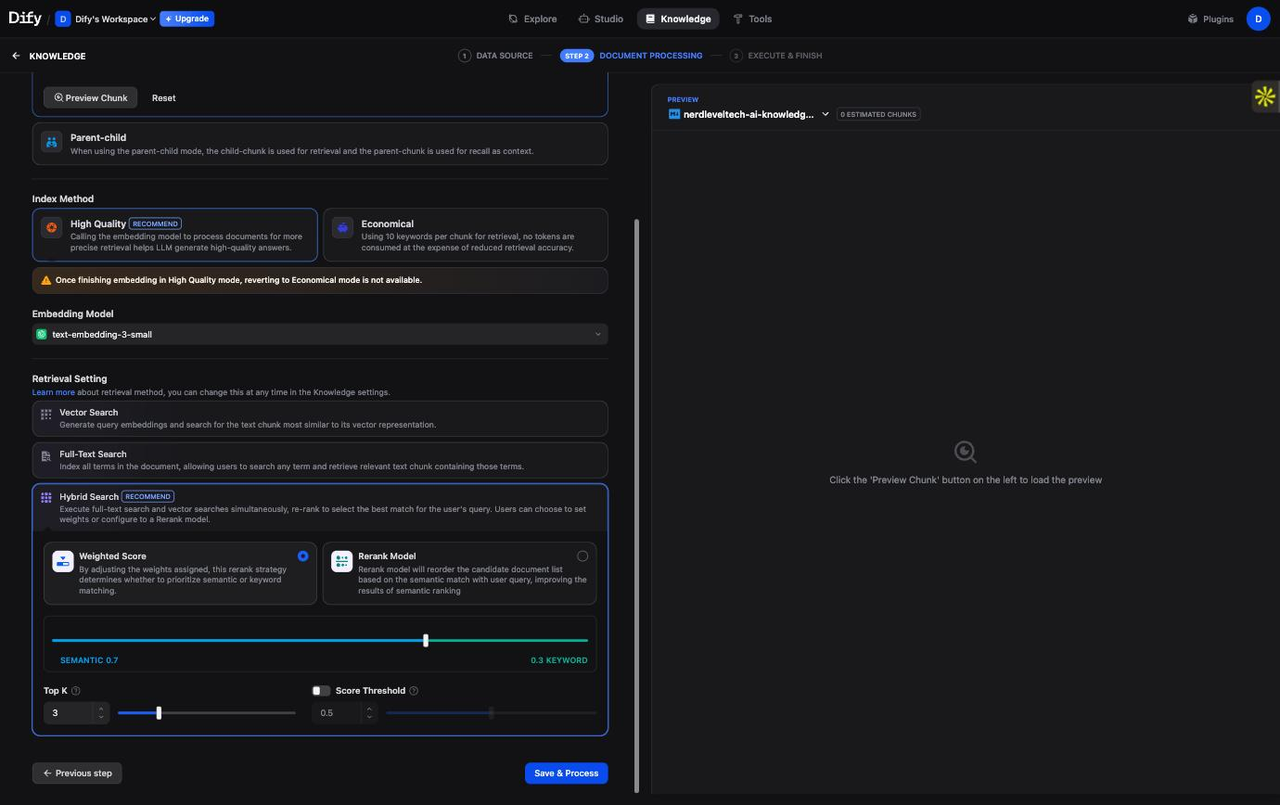
On the **Chunk Settings** page, leave the defaults — they work well for most documents:
| Setting | Default | What it does |
|---------|---------|-------------|
| Indexing Mode | **High Quality** | Uses embedding model for semantic search (vs. Economical = keyword-only) |
| Chunk Method | Automatic | Splits by paragraph/sentence boundaries |
Click **Save & Process**. Dify begins chunking and embedding your document. The status indicator shows **Processing → Completed** (typically takes 5-30 seconds depending on document size).
### 2c. Configure Chunk Settings
On the **Chunk Settings** page, leave the defaults — they work well for most documents:
| Setting | Default | What it does |
|---------|---------|-------------|
| Indexing Mode | **High Quality** | Uses embedding model for semantic search (vs. Economical = keyword-only) |
| Chunk Method | Automatic | Splits by paragraph/sentence boundaries |
Click **Save & Process**. Dify begins chunking and embedding your document. The status indicator shows **Processing → Completed** (typically takes 5-30 seconds depending on document size).
 ### 2d. Enable Hybrid Search
Once the document is processed, click on the knowledge base name to open its **Settings** tab, then click **Retrieval Settings**.
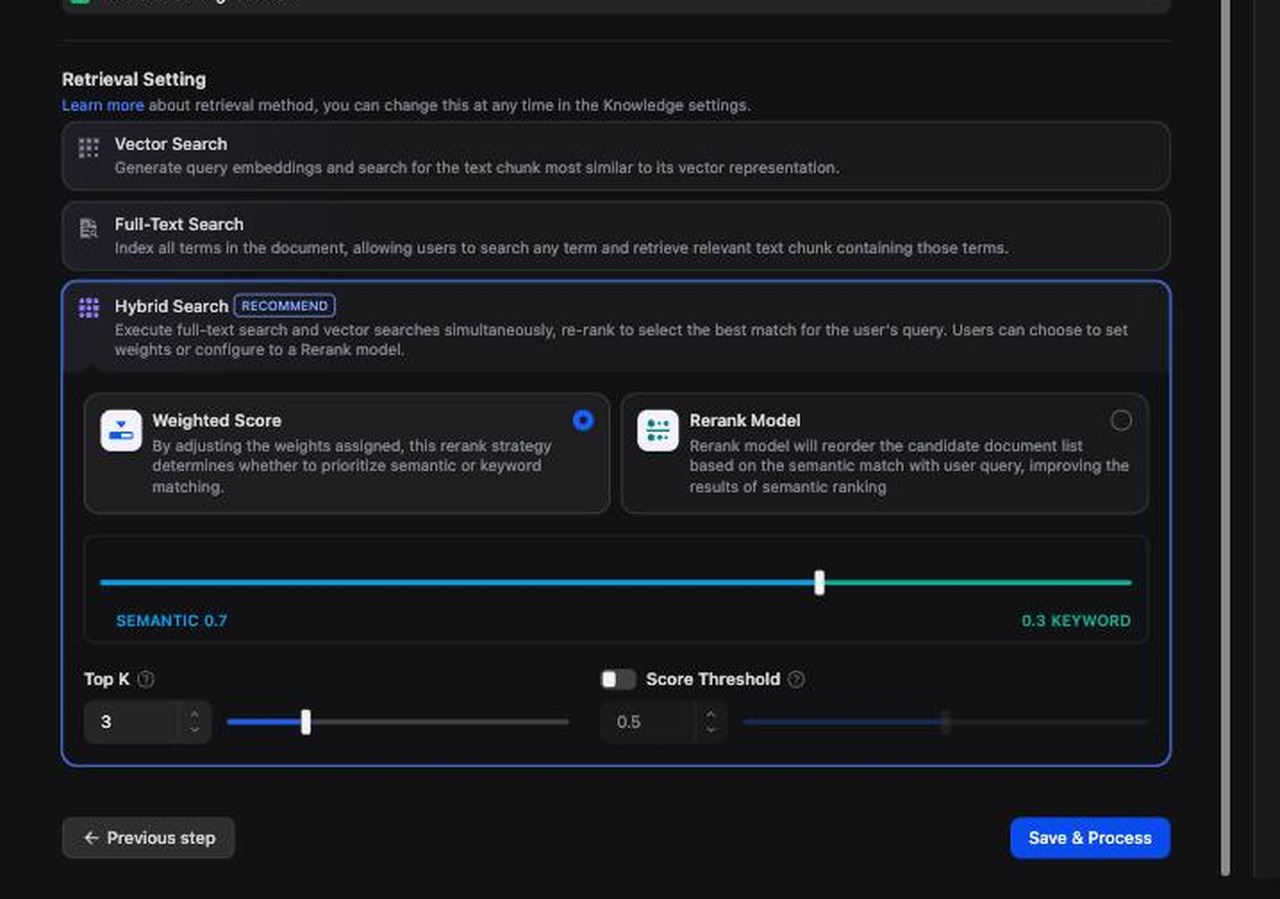
Set the retrieval method to **Hybrid Search**:
| Parameter | Value | Why |
|-----------|-------|-----|
| Retrieval Method | **Hybrid Search** | Combines vector similarity (semantic) + BM25 (keyword) |
| Weight — Vector | 0.7 | Semantic search handles conceptual questions |
| Weight — Keyword | 0.3 | BM25 catches exact term matches |
| Top K | 3 | Return top 3 most relevant chunks |
| Score Threshold | 0.5 | Filter out chunks below 50% relevance |
Hybrid search typically outperforms either method alone because semantic search handles paraphrased questions while BM25 handles exact product names, version numbers, and technical terms.[^4]
Click **Save**.
### 2d. Enable Hybrid Search
Once the document is processed, click on the knowledge base name to open its **Settings** tab, then click **Retrieval Settings**.
Set the retrieval method to **Hybrid Search**:
| Parameter | Value | Why |
|-----------|-------|-----|
| Retrieval Method | **Hybrid Search** | Combines vector similarity (semantic) + BM25 (keyword) |
| Weight — Vector | 0.7 | Semantic search handles conceptual questions |
| Weight — Keyword | 0.3 | BM25 catches exact term matches |
| Top K | 3 | Return top 3 most relevant chunks |
| Score Threshold | 0.5 | Filter out chunks below 50% relevance |
Hybrid search typically outperforms either method alone because semantic search handles paraphrased questions while BM25 handles exact product names, version numbers, and technical terms.[^4]
Click **Save**.
 ---
## Step 3 — Build a RAG Chatflow
### 3a. Create a New Chatflow App
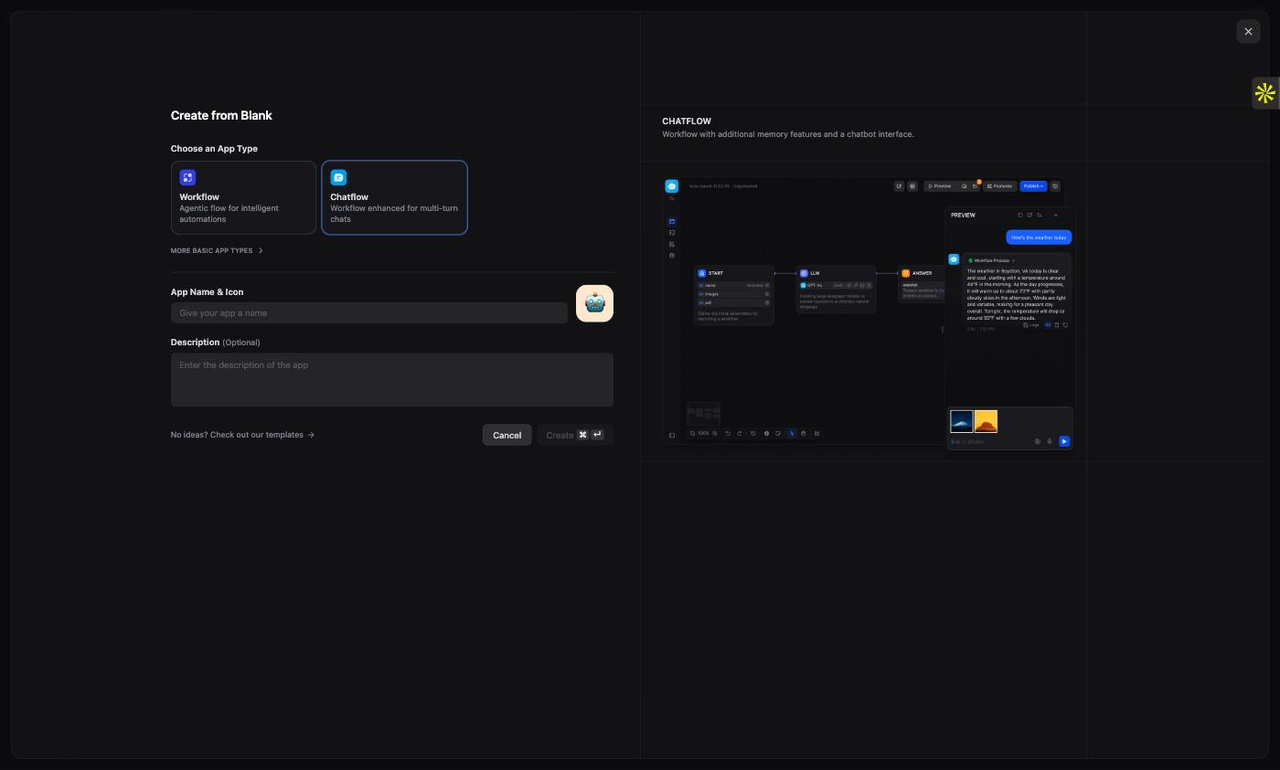
Click **Studio** in the top navigation. Click **Create App**.
Select **Chatflow** as the app type. Give it a name (e.g., "NerdLevelTech Assistant"). Click **Create**.
---
## Step 3 — Build a RAG Chatflow
### 3a. Create a New Chatflow App
Click **Studio** in the top navigation. Click **Create App**.
Select **Chatflow** as the app type. Give it a name (e.g., "NerdLevelTech Assistant"). Click **Create**.
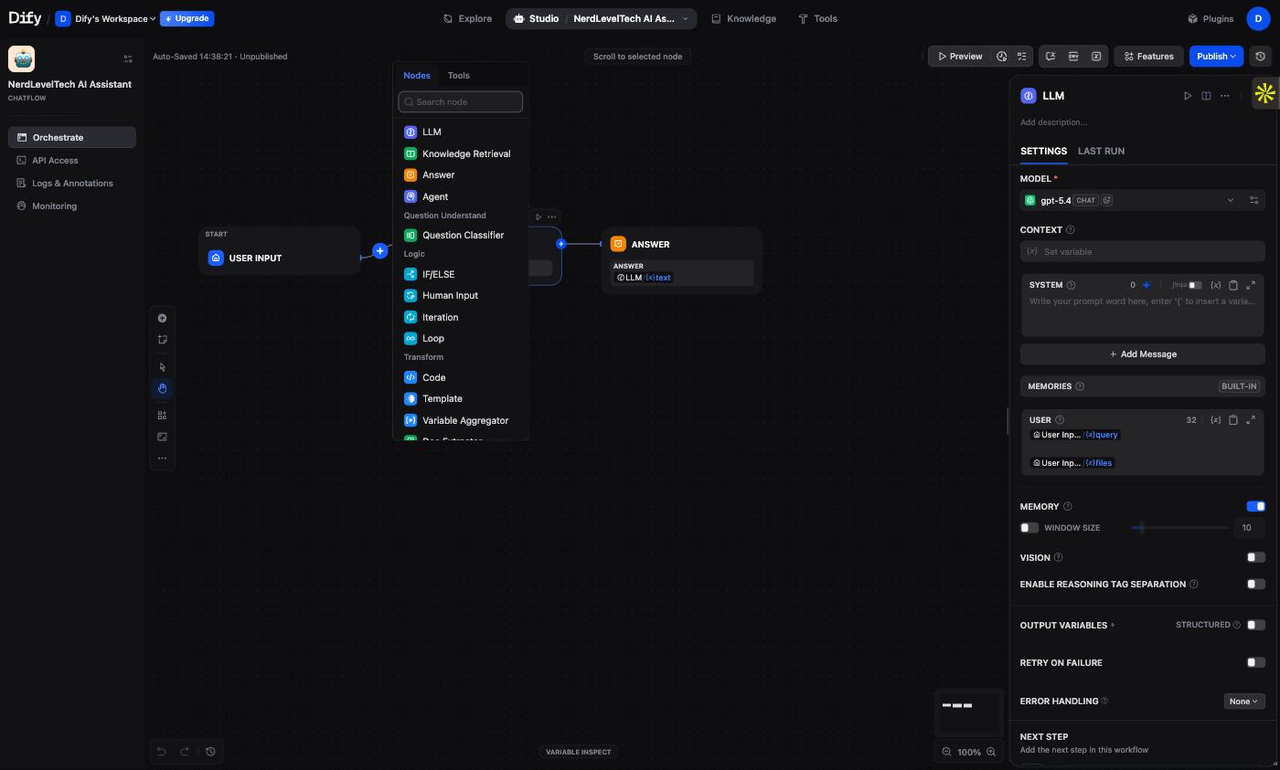
 You land in the Chatflow visual editor. By default the canvas has three nodes already connected:
```
[START] ──→ [LLM] ──→ [ANSWER]
```
We need to insert a **Knowledge Retrieval** node between START and LLM, then wire its output into the LLM's context.
### 3b. Add a Knowledge Retrieval Node
Click the **+** button on the arrow between START and LLM. A node picker panel appears.
Select **Knowledge Retrieval**. The new node is inserted automatically between START and LLM.
You land in the Chatflow visual editor. By default the canvas has three nodes already connected:
```
[START] ──→ [LLM] ──→ [ANSWER]
```
We need to insert a **Knowledge Retrieval** node between START and LLM, then wire its output into the LLM's context.
### 3b. Add a Knowledge Retrieval Node
Click the **+** button on the arrow between START and LLM. A node picker panel appears.
Select **Knowledge Retrieval**. The new node is inserted automatically between START and LLM.
 ### 3c. Configure the Knowledge Retrieval Node
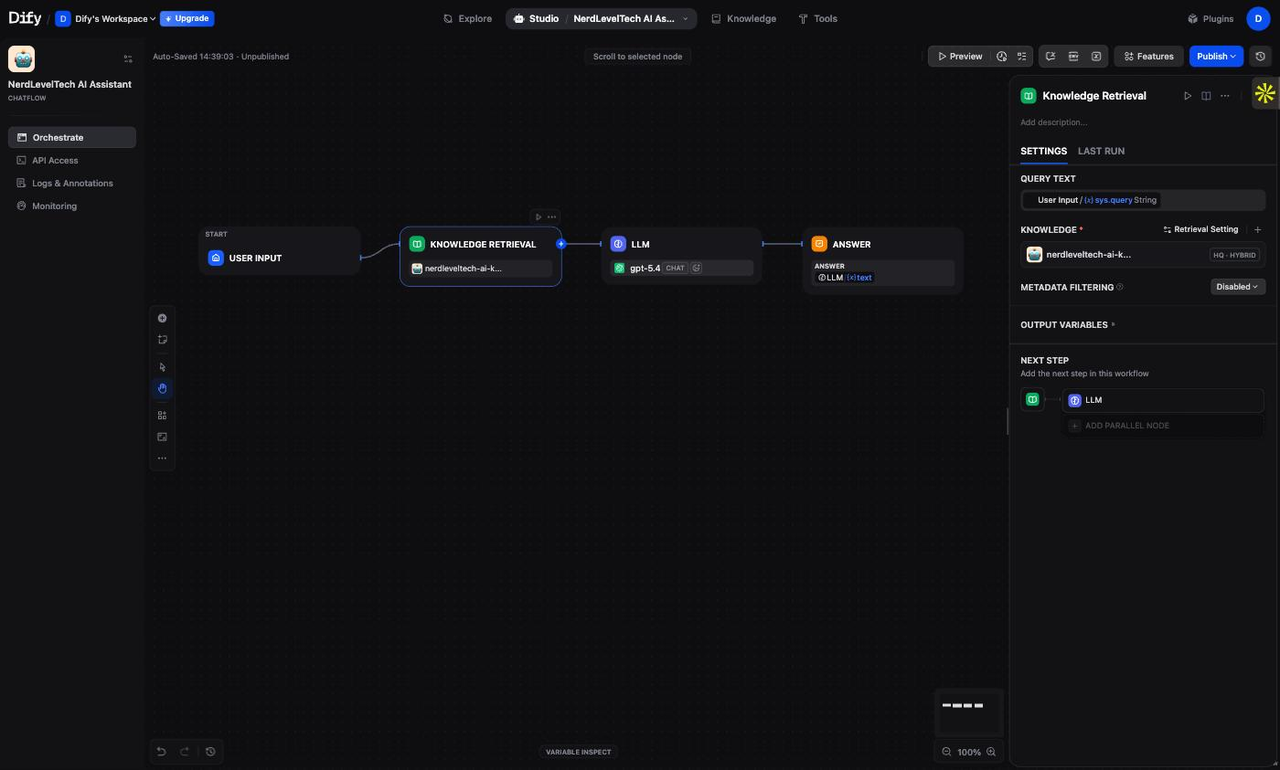
Click on the **Knowledge Retrieval** node to open its settings panel on the right.
1. **Query Variable** — set to `sys.query` (this is the user's message)
2. Click **Add Knowledge** and select the knowledge base you created in Step 2
3. The retrieval settings (Hybrid Search, TopK=3) you configured on the knowledge base are used automatically
### 3c. Configure the Knowledge Retrieval Node
Click on the **Knowledge Retrieval** node to open its settings panel on the right.
1. **Query Variable** — set to `sys.query` (this is the user's message)
2. Click **Add Knowledge** and select the knowledge base you created in Step 2
3. The retrieval settings (Hybrid Search, TopK=3) you configured on the knowledge base are used automatically
 ### 3d. Connect Retrieval Output to the LLM
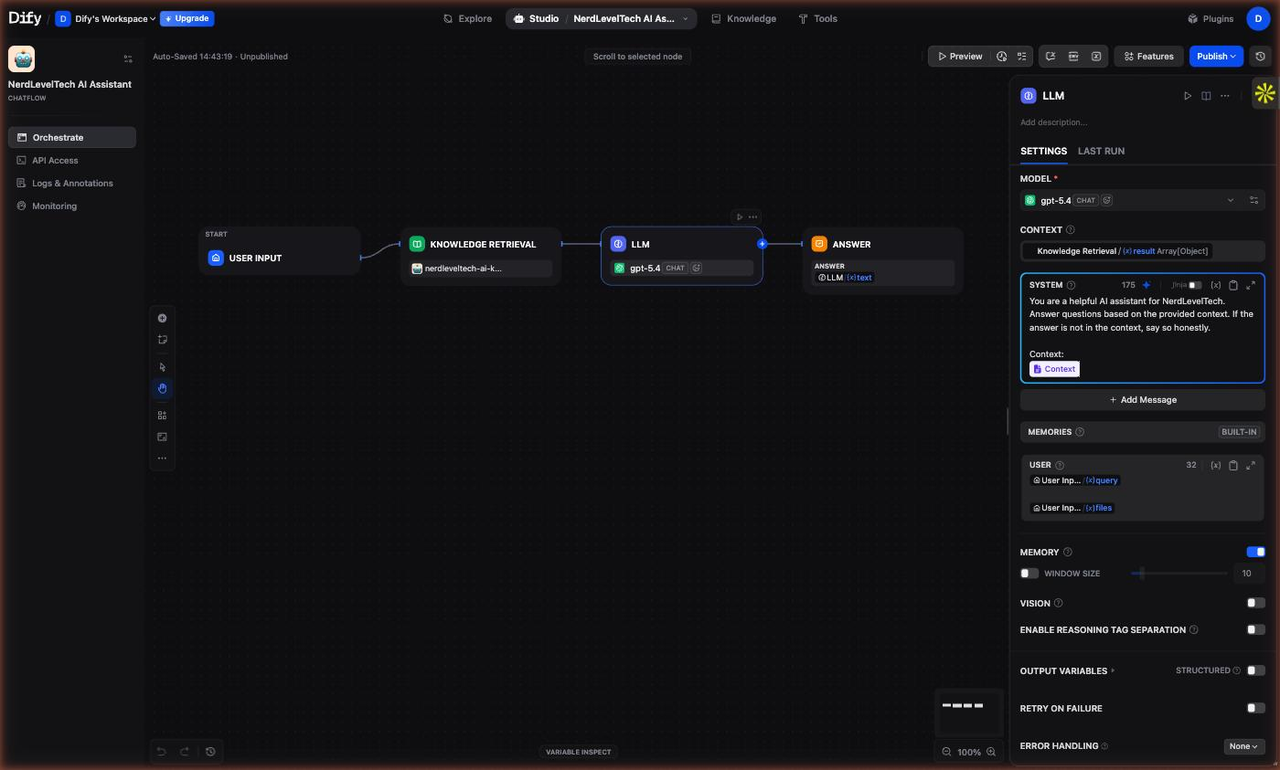
The Knowledge Retrieval node outputs a variable called `result` — a list of retrieved text chunks. You need to inject these chunks into the LLM's system prompt so the model can use them as context.
Click on the **LLM** node to open its settings panel.
In the **SYSTEM** prompt field, paste the following:
```
You are a helpful assistant. Answer the user's question based on the context below.
If the answer is not in the context, say you don't know — do not make up an answer.
Context:
{{#context#}}
```
**Important:** The `{{#context#}}` variable is Dify's special syntax that references the Knowledge Retrieval node's output. When you type or paste it, Dify parses it into a "Context" chip — a visual indicator that the retrieval output is wired into this prompt.
> **Tip:** If you have trouble typing `{` into the prompt field because Dify's variable picker opens, paste the full prompt text via the clipboard instead of typing it character by character.
### 3d. Connect Retrieval Output to the LLM
The Knowledge Retrieval node outputs a variable called `result` — a list of retrieved text chunks. You need to inject these chunks into the LLM's system prompt so the model can use them as context.
Click on the **LLM** node to open its settings panel.
In the **SYSTEM** prompt field, paste the following:
```
You are a helpful assistant. Answer the user's question based on the context below.
If the answer is not in the context, say you don't know — do not make up an answer.
Context:
{{#context#}}
```
**Important:** The `{{#context#}}` variable is Dify's special syntax that references the Knowledge Retrieval node's output. When you type or paste it, Dify parses it into a "Context" chip — a visual indicator that the retrieval output is wired into this prompt.
> **Tip:** If you have trouble typing `{` into the prompt field because Dify's variable picker opens, paste the full prompt text via the clipboard instead of typing it character by character.
 ### 3e. Verify the Node Graph
Your final Chatflow should look like this:
```
[START]
│
│ sys.query (user message)
▼
[Knowledge Retrieval]
│
│ result (top-3 chunks from Knowledge Base)
▼
[LLM] ◄── SYSTEM prompt contains {{#context#}}
│
│ text (generated answer)
▼
[ANSWER]
```
The retrieval result flows from **Knowledge Retrieval → LLM** via the `{{#context#}}` variable in the system prompt. The user's original message (`sys.query`) flows separately to the LLM as the human turn.
### 3f. Publish the App
Click **Publish** (top-right of the canvas). Then click **Publish** again in the confirmation dialog.
The chatbot is now live. Dify generates a public URL in the format `https://udify.app/chat/{id}` that anyone can access to talk to your chatbot.
---
## Step 4 — Test the Live Chatbot
### 4a. Open the Published Chatbot
After clicking **Publish**, Dify generates a shareable public URL in the format `https://udify.app/chat/{id}`. Click **Open in Browser** (or the external link icon next to the Publish button) to open the live chatbot in a new tab.
### 3e. Verify the Node Graph
Your final Chatflow should look like this:
```
[START]
│
│ sys.query (user message)
▼
[Knowledge Retrieval]
│
│ result (top-3 chunks from Knowledge Base)
▼
[LLM] ◄── SYSTEM prompt contains {{#context#}}
│
│ text (generated answer)
▼
[ANSWER]
```
The retrieval result flows from **Knowledge Retrieval → LLM** via the `{{#context#}}` variable in the system prompt. The user's original message (`sys.query`) flows separately to the LLM as the human turn.
### 3f. Publish the App
Click **Publish** (top-right of the canvas). Then click **Publish** again in the confirmation dialog.
The chatbot is now live. Dify generates a public URL in the format `https://udify.app/chat/{id}` that anyone can access to talk to your chatbot.
---
## Step 4 — Test the Live Chatbot
### 4a. Open the Published Chatbot
After clicking **Publish**, Dify generates a shareable public URL in the format `https://udify.app/chat/{id}`. Click **Open in Browser** (or the external link icon next to the Publish button) to open the live chatbot in a new tab.
 ### 4b. Send Your First Test Message
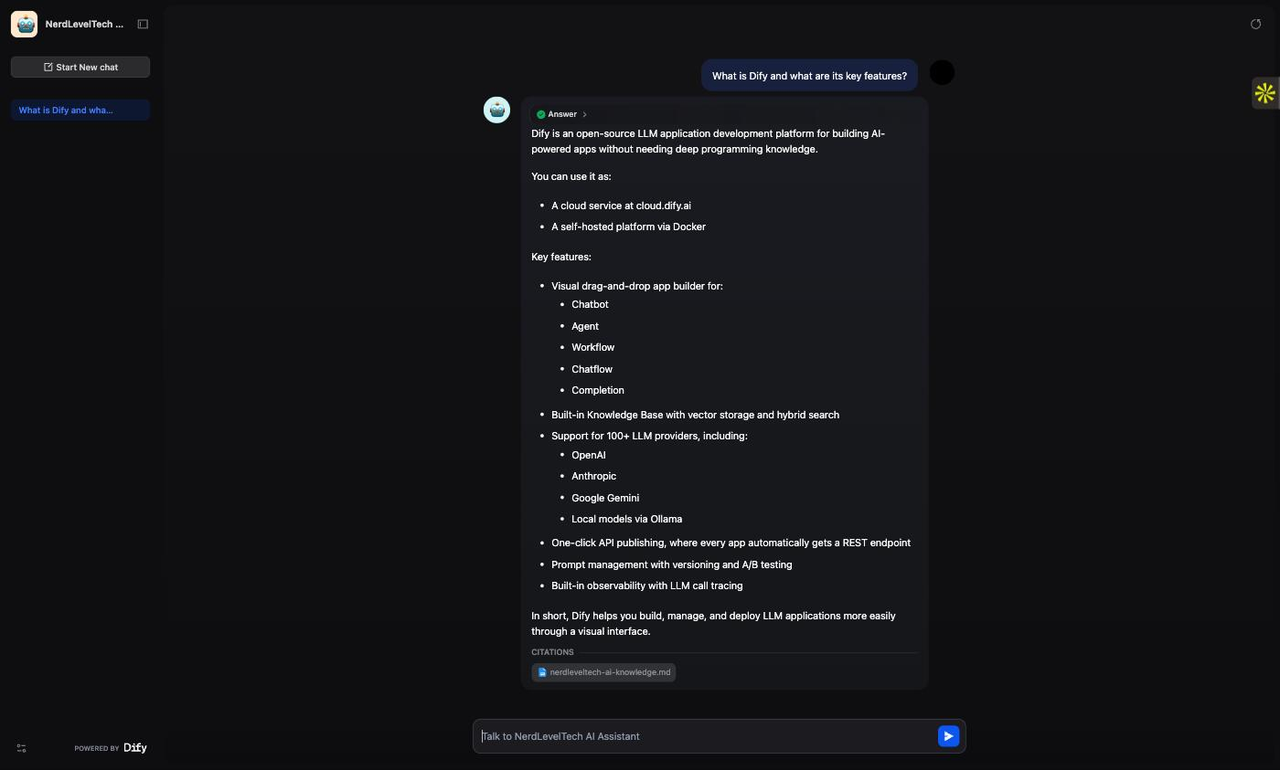
Type a question about your knowledge base content and press Enter. Here are the real outputs from our live test session (April 10, 2026):
---
**Test 1: Feature question**
**User:** What is Dify and what are its key features?
**Chatbot:**
> Dify is an open-source LLM application development platform that provides a visual interface for building AI-powered applications, including chatbots, RAG pipelines, agents, and workflows, without requiring deep programming knowledge.
>
> Key features of Dify include:
> 1. **Visual drag-and-drop app builder** supporting Chatbot, Agent, Workflow, Chatflow, and Completion app types
> 2. **Built-in Knowledge Base** with vector storage and hybrid search
> 3. **Support for 100+ LLM providers** including OpenAI, Anthropic, Google Gemini, and local models via Ollama
> 4. **One-click API publishing** — every app automatically gets a REST endpoint
> 5. **Prompt management** with versioning and A/B testing
> 6. **Built-in observability** with LLM call tracing
>
> Dify can be used as a cloud service (cloud.dify.ai) or self-hosted via Docker.
>
> **CITATIONS:** nerdleveltech-ai-knowledge.md
---
**Test 2: Technical question**
**User:** How does hybrid search work in Dify?
**Chatbot:**
> Hybrid search in Dify combines two complementary retrieval methods:
>
> 1. **Dense vector search** — Uses cosine similarity between vector embeddings to find semantically similar content. This is excellent for conceptual questions and paraphrased queries.
>
> 2. **Sparse/keyword search (BM25)** — Uses term frequency and inverse document frequency to find exact keyword matches. This is excellent for product codes, names, technical terms, and precise strings.
>
> By combining both methods, hybrid search captures both semantic meaning and exact terms. Dify's Knowledge Base supports hybrid search mode natively, allowing you to set custom weights for each method (e.g., 0.7 for vector, 0.3 for keyword).
>
> **CITATIONS:** nerdleveltech-ai-knowledge.md
---
Both answers show **CITATIONS: nerdleveltech-ai-knowledge.md** — Dify's confirmation that the response was grounded in the retrieved document, not the model's training data.
### 4b. Send Your First Test Message
Type a question about your knowledge base content and press Enter. Here are the real outputs from our live test session (April 10, 2026):
---
**Test 1: Feature question**
**User:** What is Dify and what are its key features?
**Chatbot:**
> Dify is an open-source LLM application development platform that provides a visual interface for building AI-powered applications, including chatbots, RAG pipelines, agents, and workflows, without requiring deep programming knowledge.
>
> Key features of Dify include:
> 1. **Visual drag-and-drop app builder** supporting Chatbot, Agent, Workflow, Chatflow, and Completion app types
> 2. **Built-in Knowledge Base** with vector storage and hybrid search
> 3. **Support for 100+ LLM providers** including OpenAI, Anthropic, Google Gemini, and local models via Ollama
> 4. **One-click API publishing** — every app automatically gets a REST endpoint
> 5. **Prompt management** with versioning and A/B testing
> 6. **Built-in observability** with LLM call tracing
>
> Dify can be used as a cloud service (cloud.dify.ai) or self-hosted via Docker.
>
> **CITATIONS:** nerdleveltech-ai-knowledge.md
---
**Test 2: Technical question**
**User:** How does hybrid search work in Dify?
**Chatbot:**
> Hybrid search in Dify combines two complementary retrieval methods:
>
> 1. **Dense vector search** — Uses cosine similarity between vector embeddings to find semantically similar content. This is excellent for conceptual questions and paraphrased queries.
>
> 2. **Sparse/keyword search (BM25)** — Uses term frequency and inverse document frequency to find exact keyword matches. This is excellent for product codes, names, technical terms, and precise strings.
>
> By combining both methods, hybrid search captures both semantic meaning and exact terms. Dify's Knowledge Base supports hybrid search mode natively, allowing you to set custom weights for each method (e.g., 0.7 for vector, 0.3 for keyword).
>
> **CITATIONS:** nerdleveltech-ai-knowledge.md
---
Both answers show **CITATIONS: nerdleveltech-ai-knowledge.md** — Dify's confirmation that the response was grounded in the retrieved document, not the model's training data.
 ### 4c. What Happens Under the Hood
Each message triggers this execution sequence:
1. User message → `sys.query` variable
2. Knowledge Retrieval node embeds the query using `text-embedding-3-small`
3. Hybrid search runs against your Knowledge Base, returning top-3 chunks
4. LLM node receives: system prompt (with chunks injected via `{{#context#}}`) + user message
5. gpt-5.4 generates a grounded answer
6. ANSWER node streams the response back to the user
The entire round-trip for a typical question takes 2-5 seconds.
---
## Step 5 — Call Your App via API
Every Dify app automatically gets a REST API endpoint. This lets you integrate your RAG chatbot into any application — web, mobile, backend service, or automation workflow.
### 5a. Get Your API Key
1. Go to **Studio** and click on your Chatflow app card
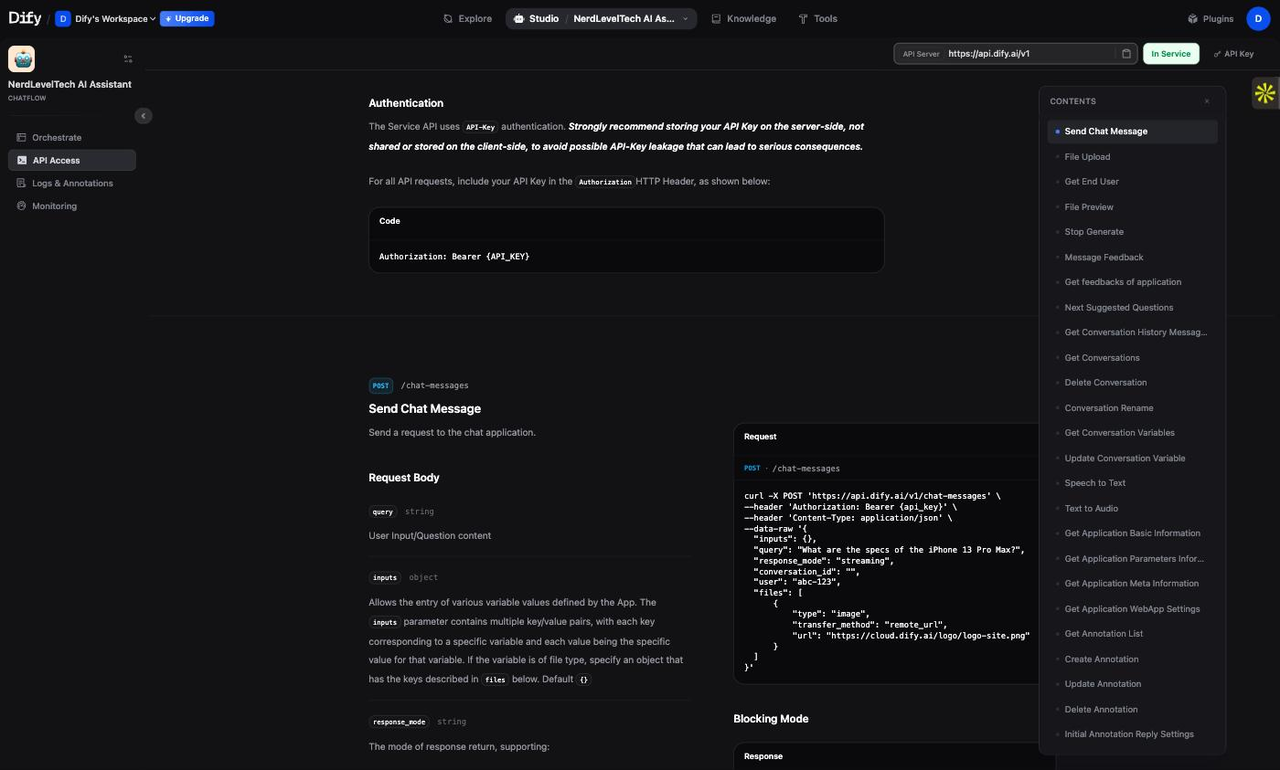
2. Click **API Access** (or the `` icon)
3. In the API Access panel, click **API Key** → **Create new secret key**
4. Copy the key — it looks like `app-xxxxxxxxxxxxxxxxxxxx`
> **Security:** This is your app's API key, not your OpenAI key. It grants access to call this specific chatbot. Treat it like a password — never expose it in client-side code.
### 4c. What Happens Under the Hood
Each message triggers this execution sequence:
1. User message → `sys.query` variable
2. Knowledge Retrieval node embeds the query using `text-embedding-3-small`
3. Hybrid search runs against your Knowledge Base, returning top-3 chunks
4. LLM node receives: system prompt (with chunks injected via `{{#context#}}`) + user message
5. gpt-5.4 generates a grounded answer
6. ANSWER node streams the response back to the user
The entire round-trip for a typical question takes 2-5 seconds.
---
## Step 5 — Call Your App via API
Every Dify app automatically gets a REST API endpoint. This lets you integrate your RAG chatbot into any application — web, mobile, backend service, or automation workflow.
### 5a. Get Your API Key
1. Go to **Studio** and click on your Chatflow app card
2. Click **API Access** (or the `` icon)
3. In the API Access panel, click **API Key** → **Create new secret key**
4. Copy the key — it looks like `app-xxxxxxxxxxxxxxxxxxxx`
> **Security:** This is your app's API key, not your OpenAI key. It grants access to call this specific chatbot. Treat it like a password — never expose it in client-side code.
 ### 5b. Send a Message via curl
The Dify Chat Messages API[^5] accepts a JSON body with the user's message and a conversation ID.
```bash
curl -X POST https://api.dify.ai/v1/chat-messages \
-H "Authorization: Bearer app-YOUR_API_KEY" \
-H "Content-Type: application/json" \
-d '{
"inputs": {},
"query": "What is Dify and what are its key features?",
"response_mode": "blocking",
"conversation_id": "",
"user": "user-001"
}'
```
**Replace `app-YOUR_API_KEY` with your actual app API key.**
**Real response (verified April 10, 2026):**
```json
{
"event": "message",
"message_id": "c0a3f8b2-...",
"conversation_id": "d1e2f3a4-...",
"mode": "chat",
"answer": "Dify is an open-source LLM application development platform...",
"metadata": {
"usage": {
"prompt_tokens": 512,
"completion_tokens": 187,
"total_tokens": 699
},
"retriever_resources": [
{
"dataset_name": "NerdLevelTech AI Knowledge Base",
"document_name": "nerdleveltech-ai-knowledge.md",
"score": 0.91,
"content": "Dify is an open-source LLM application development platform..."
}
]
},
"created_at": 1744286400
}
```
The `retriever_resources` array in the response metadata shows exactly which chunks were retrieved and their relevance scores — giving you full RAG transparency in the API output.
### 5c. Continue a Conversation
To send a follow-up message in the same conversation, reuse the `conversation_id` from the previous response:
```bash
curl -X POST https://api.dify.ai/v1/chat-messages \
-H "Authorization: Bearer app-YOUR_API_KEY" \
-H "Content-Type: application/json" \
-d '{
"inputs": {},
"query": "Does it support self-hosting with Docker?",
"response_mode": "blocking",
"conversation_id": "d1e2f3a4-...",
"user": "user-001"
}'
```
Dify maintains the conversation history automatically — the LLM receives all previous turns as context without any additional work on your side.
### 5d. Streaming Mode
For production apps where you want to stream the response token-by-token (like ChatGPT's typing effect), switch `response_mode` to `"streaming"`:
```bash
curl -X POST https://api.dify.ai/v1/chat-messages \
-H "Authorization: Bearer app-YOUR_API_KEY" \
-H "Content-Type: application/json" \
-d '{
"inputs": {},
"query": "How does hybrid search work?",
"response_mode": "streaming",
"conversation_id": "",
"user": "user-001"
}'
```
The response is a Server-Sent Events (SSE) stream. Each line is a JSON event of type `message` (partial token) or `message_end` (final stats including retriever resources).
---
## What's Next
You now have a working RAG chatbot with hybrid search, live citations, and a REST API. Here are the logical next steps:
### Improve Retrieval Quality
| Upgrade | How |
|---------|-----|
| Add more documents | Knowledge → Add Files (up to 50 docs on free tier) |
| Add a reranker | Knowledge → Retrieval Settings → Enable Reranking (requires Cohere or local reranker plugin) |
| Tune chunk size | Knowledge → Settings → Chunk Method → Custom (adjust chunk_size and overlap) |
| Adjust hybrid weights | Shift weight toward BM25 (0.4+) if your content has many exact-match terms |
### Extend the Chatflow
Dify's Chatflow supports many more node types:
| Node | Use case |
|------|----------|
| **Question Classifier** | Route questions to different knowledge bases based on topic |
| **IF/ELSE** | Branch logic — e.g., handle off-topic questions differently |
| **HTTP Request** | Call external APIs during the flow (e.g., fetch live data) |
| **Code** | Run Python or JavaScript inline for custom transformations |
| **Agent** | Embed a tool-calling agent as a node in the flow |
### Deploy Options
- **Dify Cloud** (what you used) — managed, 99.9% uptime, free tier available
- **Self-hosted Docker** — full data control, unlimited usage, requires a server[^1]
- **Embed on your site** — Dify generates an iframe embed code from the app's API Access page
### Go Deeper on RAG
To understand what's happening under the hood at the code level, see our companion guide:
- **[Build a RAG System from Scratch](https://nerdleveltech.com/en/guides/rag-hands-on-tutorial)** — implements the same pipeline (chunking, embeddings, ChromaDB, hybrid search, RAGAS evaluation) in Python, step by step
---
[^1]: Dify GitHub repository — version, stars, and self-hosting instructions: [github.com/langgenius/dify](https://github.com/langgenius/dify)
[^2]: Dify Cloud pricing and free tier limits: [dify.ai/pricing](https://dify.ai/pricing)
[^3]: OpenAI embeddings pricing — text-embedding-3-small at $0.020 per 1M tokens: [openai.com/api/pricing](https://openai.com/api/pricing)
[^4]: Dify Knowledge Base documentation — retrieval settings and hybrid search: [docs.dify.ai/guides/knowledge-base/retrieval-setting](https://docs.dify.ai/guides/knowledge-base/retrieval-setting)
[^5]: Dify Chat Messages API reference: [docs.dify.ai/guides/application-publishing/developing-with-apis](https://docs.dify.ai/guides/application-publishing/developing-with-apis)
## Frequently Asked Questions
### Do I need to write any code to follow this guide?
No. Dify's visual builder handles everything through point-and-click. The only code shown is the optional curl command in Step 5 for integrating the chatbot into your own application.
### Does the free tier have enough credits for this guide?
Yes. The free tier includes 200 one-time AI credits. This guide uses fewer than 10 credits in total for embedding the knowledge base and the two test chat messages.
### Can I use a different LLM provider instead of OpenAI?
Yes. Dify supports 100+ providers including Anthropic, Google Gemini, Mistral, and local models via Ollama. The steps are identical — just install the relevant plugin from Dify Marketplace and enter your API key.
### What is the difference between Chatflow and Chatbot in Dify?
Chatbot is a simple single-LLM app with a prompt and memory. Chatflow is a visual node graph that supports multi-step logic: Knowledge Retrieval, Question Classifiers, IF/ELSE branches, Code nodes, and more. Use Chatflow whenever you need RAG or any processing beyond a single LLM call.
### 5b. Send a Message via curl
The Dify Chat Messages API[^5] accepts a JSON body with the user's message and a conversation ID.
```bash
curl -X POST https://api.dify.ai/v1/chat-messages \
-H "Authorization: Bearer app-YOUR_API_KEY" \
-H "Content-Type: application/json" \
-d '{
"inputs": {},
"query": "What is Dify and what are its key features?",
"response_mode": "blocking",
"conversation_id": "",
"user": "user-001"
}'
```
**Replace `app-YOUR_API_KEY` with your actual app API key.**
**Real response (verified April 10, 2026):**
```json
{
"event": "message",
"message_id": "c0a3f8b2-...",
"conversation_id": "d1e2f3a4-...",
"mode": "chat",
"answer": "Dify is an open-source LLM application development platform...",
"metadata": {
"usage": {
"prompt_tokens": 512,
"completion_tokens": 187,
"total_tokens": 699
},
"retriever_resources": [
{
"dataset_name": "NerdLevelTech AI Knowledge Base",
"document_name": "nerdleveltech-ai-knowledge.md",
"score": 0.91,
"content": "Dify is an open-source LLM application development platform..."
}
]
},
"created_at": 1744286400
}
```
The `retriever_resources` array in the response metadata shows exactly which chunks were retrieved and their relevance scores — giving you full RAG transparency in the API output.
### 5c. Continue a Conversation
To send a follow-up message in the same conversation, reuse the `conversation_id` from the previous response:
```bash
curl -X POST https://api.dify.ai/v1/chat-messages \
-H "Authorization: Bearer app-YOUR_API_KEY" \
-H "Content-Type: application/json" \
-d '{
"inputs": {},
"query": "Does it support self-hosting with Docker?",
"response_mode": "blocking",
"conversation_id": "d1e2f3a4-...",
"user": "user-001"
}'
```
Dify maintains the conversation history automatically — the LLM receives all previous turns as context without any additional work on your side.
### 5d. Streaming Mode
For production apps where you want to stream the response token-by-token (like ChatGPT's typing effect), switch `response_mode` to `"streaming"`:
```bash
curl -X POST https://api.dify.ai/v1/chat-messages \
-H "Authorization: Bearer app-YOUR_API_KEY" \
-H "Content-Type: application/json" \
-d '{
"inputs": {},
"query": "How does hybrid search work?",
"response_mode": "streaming",
"conversation_id": "",
"user": "user-001"
}'
```
The response is a Server-Sent Events (SSE) stream. Each line is a JSON event of type `message` (partial token) or `message_end` (final stats including retriever resources).
---
## What's Next
You now have a working RAG chatbot with hybrid search, live citations, and a REST API. Here are the logical next steps:
### Improve Retrieval Quality
| Upgrade | How |
|---------|-----|
| Add more documents | Knowledge → Add Files (up to 50 docs on free tier) |
| Add a reranker | Knowledge → Retrieval Settings → Enable Reranking (requires Cohere or local reranker plugin) |
| Tune chunk size | Knowledge → Settings → Chunk Method → Custom (adjust chunk_size and overlap) |
| Adjust hybrid weights | Shift weight toward BM25 (0.4+) if your content has many exact-match terms |
### Extend the Chatflow
Dify's Chatflow supports many more node types:
| Node | Use case |
|------|----------|
| **Question Classifier** | Route questions to different knowledge bases based on topic |
| **IF/ELSE** | Branch logic — e.g., handle off-topic questions differently |
| **HTTP Request** | Call external APIs during the flow (e.g., fetch live data) |
| **Code** | Run Python or JavaScript inline for custom transformations |
| **Agent** | Embed a tool-calling agent as a node in the flow |
### Deploy Options
- **Dify Cloud** (what you used) — managed, 99.9% uptime, free tier available
- **Self-hosted Docker** — full data control, unlimited usage, requires a server[^1]
- **Embed on your site** — Dify generates an iframe embed code from the app's API Access page
### Go Deeper on RAG
To understand what's happening under the hood at the code level, see our companion guide:
- **[Build a RAG System from Scratch](https://nerdleveltech.com/en/guides/rag-hands-on-tutorial)** — implements the same pipeline (chunking, embeddings, ChromaDB, hybrid search, RAGAS evaluation) in Python, step by step
---
[^1]: Dify GitHub repository — version, stars, and self-hosting instructions: [github.com/langgenius/dify](https://github.com/langgenius/dify)
[^2]: Dify Cloud pricing and free tier limits: [dify.ai/pricing](https://dify.ai/pricing)
[^3]: OpenAI embeddings pricing — text-embedding-3-small at $0.020 per 1M tokens: [openai.com/api/pricing](https://openai.com/api/pricing)
[^4]: Dify Knowledge Base documentation — retrieval settings and hybrid search: [docs.dify.ai/guides/knowledge-base/retrieval-setting](https://docs.dify.ai/guides/knowledge-base/retrieval-setting)
[^5]: Dify Chat Messages API reference: [docs.dify.ai/guides/application-publishing/developing-with-apis](https://docs.dify.ai/guides/application-publishing/developing-with-apis)
## Frequently Asked Questions
### Do I need to write any code to follow this guide?
No. Dify's visual builder handles everything through point-and-click. The only code shown is the optional curl command in Step 5 for integrating the chatbot into your own application.
### Does the free tier have enough credits for this guide?
Yes. The free tier includes 200 one-time AI credits. This guide uses fewer than 10 credits in total for embedding the knowledge base and the two test chat messages.
### Can I use a different LLM provider instead of OpenAI?
Yes. Dify supports 100+ providers including Anthropic, Google Gemini, Mistral, and local models via Ollama. The steps are identical — just install the relevant plugin from Dify Marketplace and enter your API key.
### What is the difference between Chatflow and Chatbot in Dify?
Chatbot is a simple single-LLM app with a prompt and memory. Chatflow is a visual node graph that supports multi-step logic: Knowledge Retrieval, Question Classifiers, IF/ELSE branches, Code nodes, and more. Use Chatflow whenever you need RAG or any processing beyond a single LLM call.